Bring touch to the Mac apps you use every day. Browse, create and present right on your display, with pen and eraser control when you want to do more.
Touch on macOS
Make your touch display feel at home.
Your apps, at your fingertips
Tap to select, drag to move and scroll through pages with two fingers. Browse documents, explore images and guide a presentation directly on your touch display.
Keyboard when you need it
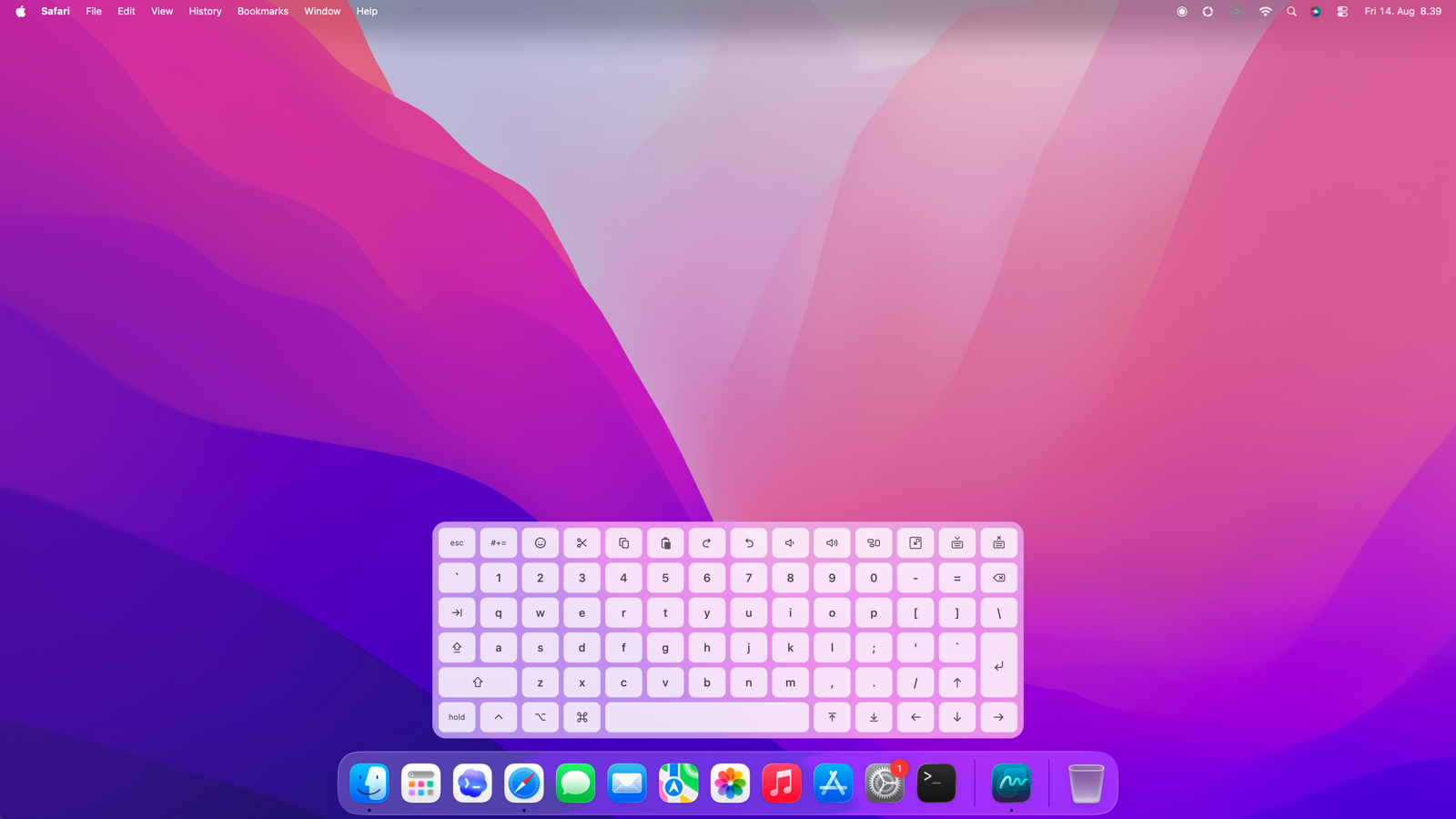
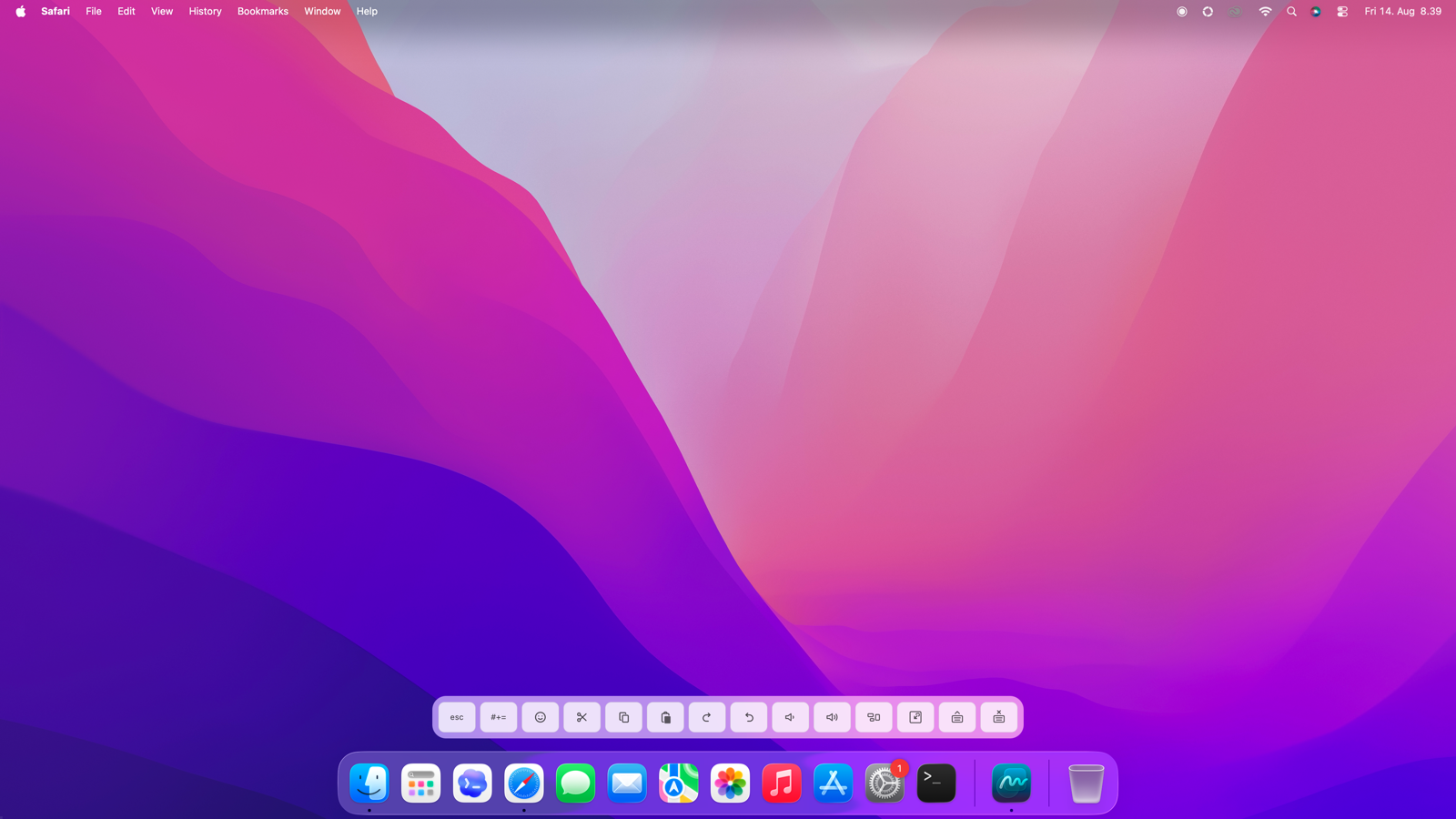
Type a quick note or search without reaching for a physical keyboard. Move the on-screen keyboard wherever it suits you, or tuck it away to keep just your shortcuts within reach.
Actions that fit your work
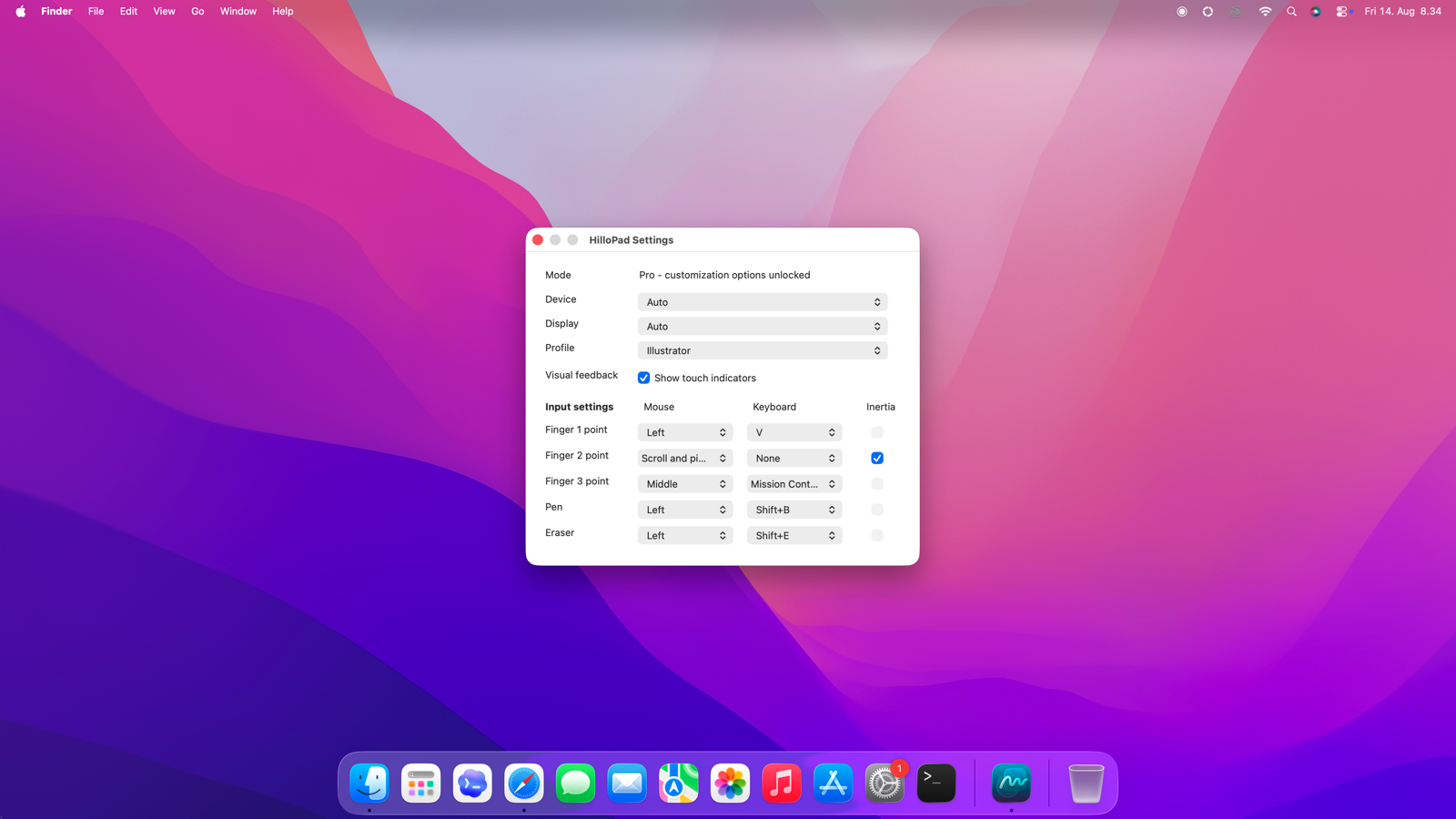
Put your favourite shortcuts at your fingertips. With Pro, you can give your pen and eraser their own actions and save different controls for each app, ready when you switch between them.
Personal & Pro
Start free. Do more with Pro.
HilloPad Personal
Free for personal, non-commercial use. No account or purchase needed.
Everything you need for everyday touch: one- and two-finger controls, scrolling and pinch, and an on-screen keyboard. Make those touch controls your own with mouse actions and keyboard shortcuts, and turn scroll inertia on or off to suit you.
Choose which display to use and keep your settings in one Default profile.
HilloPad Pro
For work, business and more possibilities. Pro covers work and business use, including when you only need the basic features. It is also for anyone who wants more from their personal setup.
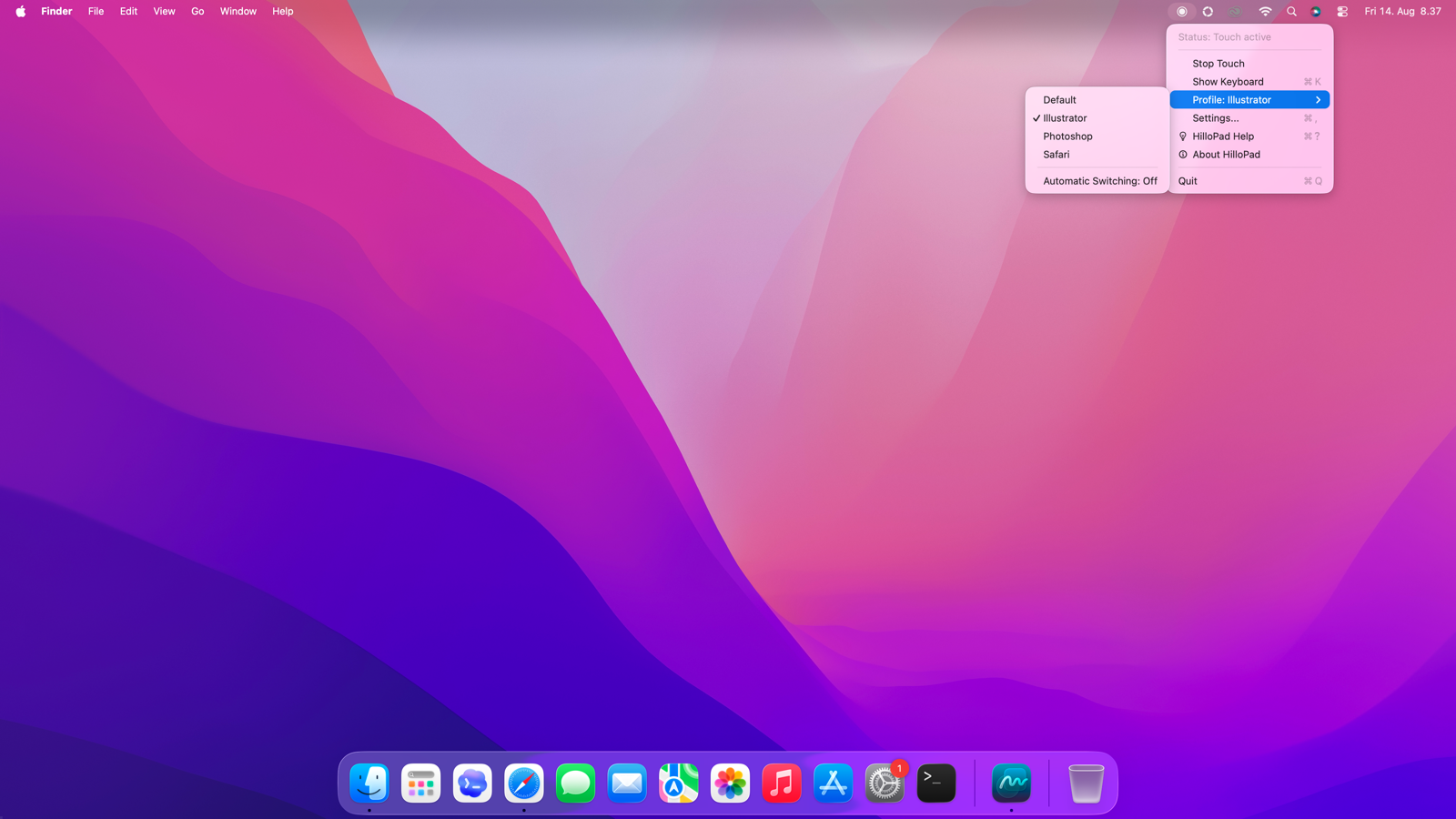
Add pen, eraser and three-finger controls to everything in Personal. Save your favourite settings as profiles for different apps, and let HilloPad switch them for you as you move from one app to another.
€24.90 + applicable VAT · One-time purchase. No subscription.
Yours to keep, with all version 1 updates included. Use your license on one device at a time.
Moving to another Mac? Release your old device in your Hilloworks account, then activate Pro on the new one.
Try HilloPad with your own display and the apps you enjoy using. Personal is free for non-commercial use. Businesses and freelancers are welcome to evaluate the free features before buying Pro for day-to-day work.
We have built HilloPad to work across displays that follow Microsoft HID touch conventions, including compatible models in the Samsung Flip and ASUS ZenScreen ranges. Not every touch display is supported, so trying it with your own setup is the best way to find out.
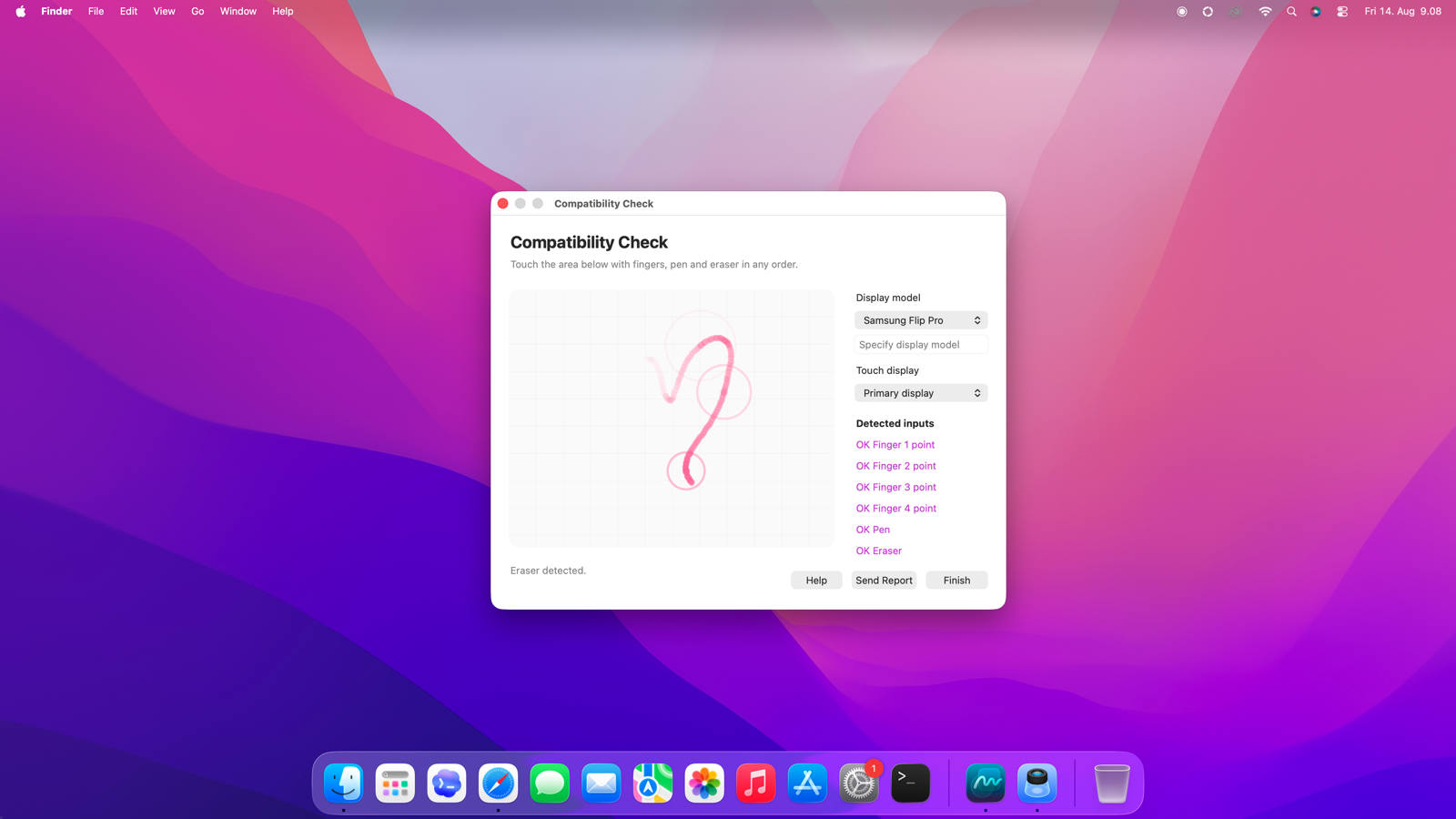
The built-in Compatibility Check helps you try your display's finger, pen and eraser features before buying Pro. You can also share an anonymous compatibility report to help us support more displays.
Touch screen questions
Can I try HilloPad at work before buying?
Yes. Businesses and freelancers can evaluate HilloPad with the free Personal features to check their displays and apps before buying. Once you put it to use for work, each device needs a Pro license, even if you only use the basic touch features. This includes shared meeting-room displays and other internal business use.
Can I use a touch display with macOS?
Yes, with a compatible display and HilloPad you can use touch in your everyday Mac apps. Connect the display for video and make sure its USB touch connection is connected to your Mac too.
What do I need to get started?
A Mac running macOS 14 or later and a compatible USB touch display. During setup, allow HilloPad in Accessibility and Input Monitoring so it can respond to your touch. HilloPad Help walks you through the steps.
Is HilloPad a touch screen driver for macOS?
HilloPad is a regular Mac app that lives in your menu bar. It gives your compatible display touch control without installing a system driver, and you can start or stop touch whenever you like.
Can several people draw on the touch display at the same time?
HilloPad is designed for one person controlling the Mac at a time. It does not provide separate drawing tools for several people to use simultaneously.
Does touch work only in apps that support touch screens?
You can use HilloPad with regular desktop apps, even if they were not designed for a touch screen. Touch works with familiar controls such as clicking, dragging, scrolling and keyboard shortcuts. The way individual gestures behave can vary between apps.
Download for macOS.
Download HilloPad and try it with your favourite apps. Use Personal for free at home, or evaluate it for work before choosing Pro.
What’s New in HilloPad 1.2
Drawpad: Sketch over other apps with a pen, eraser, finger, or mouse, while unmapped input keeps working underneath.
Natural ink: Adjustable brush widths and variation, undo and redo, plus transparent PNG save, copy, and share.
Try it in Free: Draw with the mouse before upgrading to Pro.
Better overlays: Cleaner controls, improved placement on small displays, and updated Help.
HilloPad 1.1.1
What’s New in HilloPad 1.1.1
More reliable touch: Touch reconnects after sleep and responds to display connections and disconnections.
Smarter display detection: Touch follows your display when you switch between primary and secondary screens.
More flexible controls: Adjust multitouch sensitivity and chain multiple Pro key combos before or after a mouse action.
Clearer feedback: Get optional notifications when profiles switch automatically, along with a smoother first-time setup.
HilloPad 1.1.0
What’s New in HilloPad 1.1
New touchpad: Move the pointer with smaller gestures, tap to click, and scroll with two fingers.
A more polished look: Refined translucent windows and menus.
Better keyboard symbols: Familiar macOS icons make the on-screen keyboard easier to use.
HilloPad 1.0.0
HilloPad 1.0 is here. Bring touch to your everyday Mac apps with customizable gestures, scrolling, pen and eraser controls, and app-specific profiles.
Need help getting started?
From installation to your first touch, HilloPad Help will guide you through.